Sunday, 24 February 2013

win 8 task manager :D

How to Use the New Task Manager in Windows 8

sshot-2
The Task Manager in Windows 8 has been completely overhauled. It’s easier-to-use, slicker, and more feature-packed than ever. Windows 8 may be all about Metro, but the Task Manager and Windows Explorer are better than ever.
The Task Manager now manages startup programs, shows your IP address, and displays slick resource usage graphs. The new color-coding highlights the processes using the most system resources, so you can see them at a glance.

Launching the Task Manager

The Task Manager can still be launched in the traditional ways. Press Ctrl-Alt-Delete from anywhere and you’ll see a link to launch the Task Manager.

You can also right-click the taskbar and select “Task Manager.”

Managing Processes

The Task Manager’s default interface lets you easily view and end active applications, without any clutter getting in the way. It shows both Metro-style apps and desktop apps.

Click the “More details” button and you’ll see much more information. Resource-usage statistics are color-coded – the darker the color, the more resources used.
You can expand an app to see its windows, if the app has multiple windows.

The list of processes is divided into three sections – apps, background processes and Windows system processes.
If you’re not sure what a processes is, you can right-click it and select “Search online” to search for it in your default search engine.

System Statistics

The Performance tab shows slick graphs of your system information. You can select either of the options at the right to see more information. The new interface shows much more information than the old Task Manager showed.

You can actually see your system’s IP address without digging through the Control Panel. This used to require a lot of clicks.

You can still open the Resource Monitor application in one click. It hasn’t been updated in Windows 8, but it shows even more information than the Task Manager does.

App History

The Processes tab only shows each process’s current resource usage. The “App history” tab shows how much CPU time and network bandwidth each Metro app has used, so you can identify the resource hogs.

Startup Programs

The Startup tab shows the applications that automatically start with your computer. Windows finally has a way to easily disable startup programs. Windows also measures just how long each application is delaying your startup, so you can make informed decisions.

Users

The Users tab breaks down your system’s resource usage by user account. You can expand a user’s name to view that user’s processes.

Advanced Process Details & Services

The Details tab is the evolution of the old Processes tab on previous versions of Windows. It doesn’t have a pretty interface – although application icons have been added. It exposes exposes advanced options not found on other tabs, including process priority and CPU affinity. (CPU affinity determines which CPU a process runs on, if your system has multiple CPUs or a CPU with multiple cores.)
The Services tab has been prettied up and now includes an option to quickly restart services.

You can click the Open Services link to use the Services application, which contains the advanced options you won’t find in the Task Manager.


The new Task Manager is a huge step up, both in features and presentation. It’s particularly exciting that average users finally have a way to manage their automatically starting programs.

Desktop Fun: Terran Solar System Customization Set

Desktop Fun: Terran Solar System Customization Set

terran-solar-system-customisation-set-00
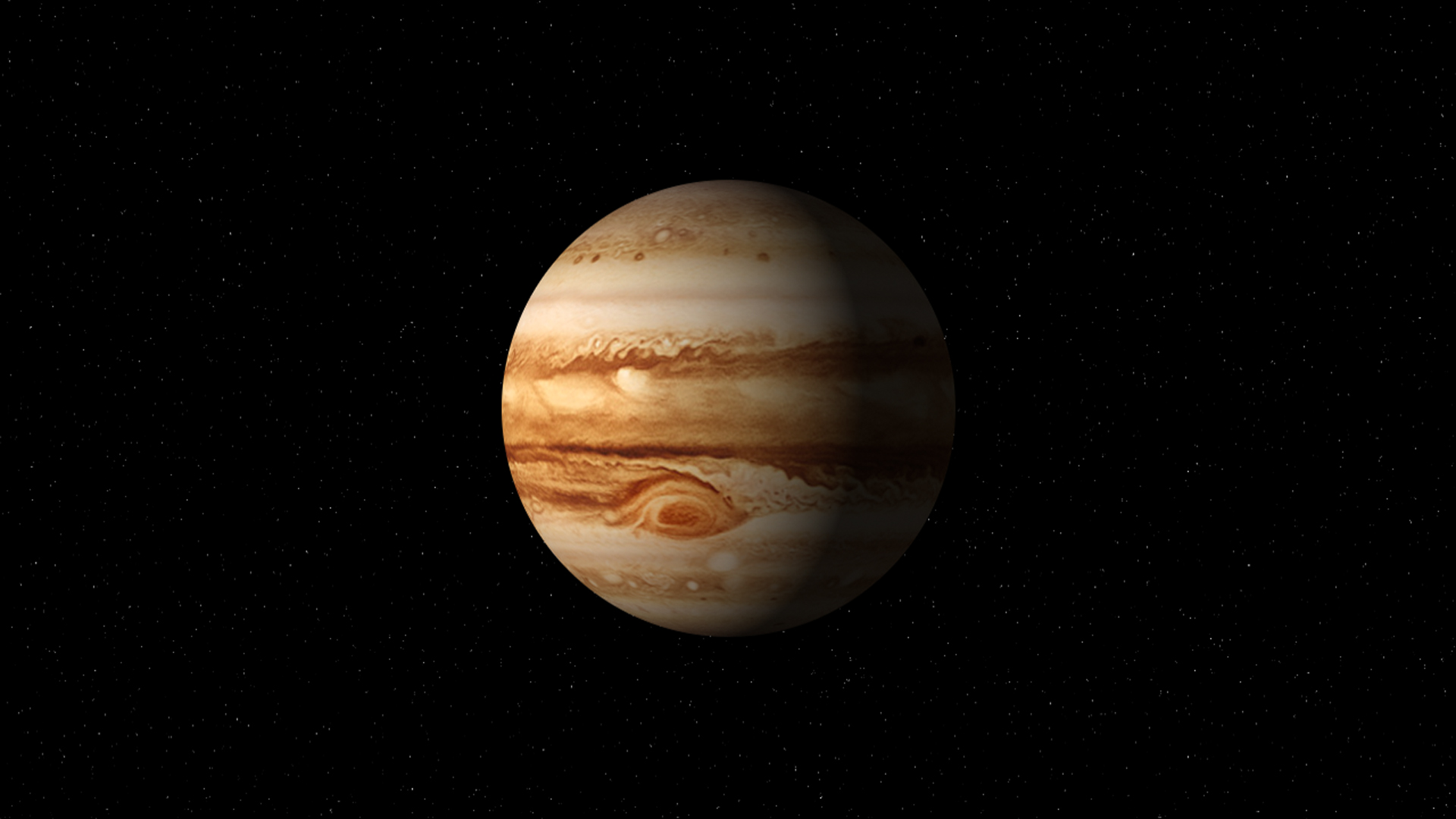
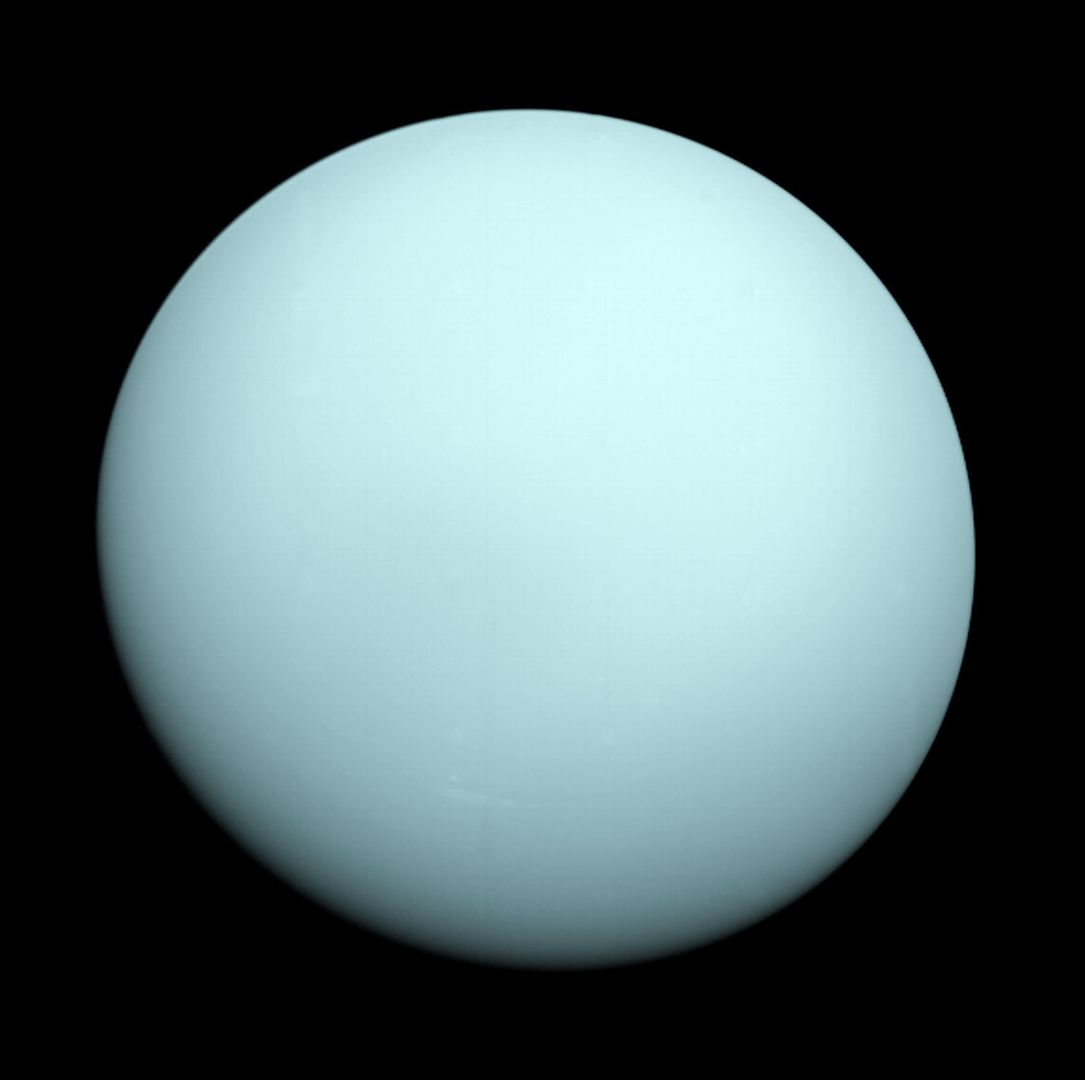
Our solar system is a place full of wonder, with planets and moons to explore, and discoveries waiting to be made. Now you can bring the beauty and mysteries of our solar system straight to your desktop with our Terran Solar System Customization set.

Wallpapers

Note 1: Click on the picture to see the full-size image—these wallpapers vary in size so you may need to crop, stretch, or place them on a colored background in order to best match them to your screen’s resolution.
Note 2: Some of these images are radar/infrared enhanced and/or artists’ concepts. The images in order are: Sol (Sun), Mercury, Venus, Earth, Mars, Jupiter, Saturn, Uranus, Neptune, Pluto with Charon, and Eris with Dysnomia.


have a look at the debuggin :D How to Use the Advanced Startup Options to Fix Your Windows 8 Computer

How to Use the Advanced Startup Options to Fix Your Windows 8 Computer

image
Windows 8’s advanced startup tools function differently than the tools on previous versions of Windows. If your Windows 8 system can’t boot properly, the tools will appear automatically so you can fix the problem.
We’ve covered several ways to access the advanced startup options if your PC is working properly, including through the PC settings application. You can also create a recovery drive to ensure you’ll always be able to access these options.

Choose an option

Once you’ve accessed the advanced startup options, you’ll need to click (or tap) the Troubleshoot option to access the troubleshooting and repair options. The Continue and Turn off your PC options will continue booting to Windows (assuming there isn’t a problem) or power off your computer.
image

Troubleshoot

The Troubleshoot screen provides easy access to the Refresh and Reset your PC options. This is particularly useful if you want to refresh or reset your PC, but can’t get into Windows.
  • Refresh your PC: Refreshing your PC restores its system software to its factory state without deleting your files or installed Modern apps. However, any installed desktop apps will be removed.
  • Reset your PC: Resetting your PC (not to be confused with rebooting your PC) resets it to its factory state. Any personal files and settings on your computer will be deleted.
If you just want to fix your computer and you’re not sure which option to pick, try Refreshing your PC so you don’t lose all your files.
image
For more advanced troubleshooting and repair tools, click (or tap) Advanced options.

Advanced options

The Advanced options screen holds the advanced troubleshooting and repair options.
image
  • System Restore: Restore your computer to an earlier restore point. This is the same as using System Restore within Windows. However, if Windows 8 can’t boot, it may boot properly after you restore your PC to a working state.
  • System Image Recovery: Restore your computer using a system image file. The system image overwrites your computer’s state and files. You’ll need to use Windows 7’s backup tools in Windows 8 to create a system image.
  • Automatic Repair: Try to automatically repair issues that can prevent Windows from booting properly. If your computer can’t boot into Windows, this option is worth a try.
  • Command Prompt: Open a Recovery Environment Command Prompt. This will allow you to run a variety of commands to troubleshoot and fix your computer. This option should only be used by advanced users who know what they’re doing.
  • Startup Settings: The Startup Settings option allows you to modify a number of startup options. For example, you can enable Safe Mode from here. You can also disable automatic restart after failure – this option will allow you to see the error message if your PC is constantly blue-screening and rebooting.
image
The advanced options here may allow you to fix the problem – the Automatic Repair option is particularly useful, and the System Restore or Safe Mode options may help you boot your computer. If none of these options work, you’ll need to perform a refresh (or a full reset.)

EARTHINGS!!! :D

Desktop Fun: Views of Earth Wallpaper Collection [Bonus Size]

views-of-earth-wallpaper-collection-00
Our planet is a beautiful sight to behold from orbit or further out in the solar system…a tranquil blue jewel resting among the stars. Bring the majestic beauty of our home world to your desktop with our Views of Earth Wallpaper collection.

Views of Earth

Note: Click on the picture to see the full-size image—these wallpapers vary in size so you may need to crop, stretch, or place them on a colored background in order to best match them to your screen’s resolution.